EOC report in. CAP, LSRA and ILSM out.
Every EOC round ends the same way: copy each deficiency out of the report, write a corrective action for the manager, then fill in the risk assessment and the ILSM matrix. The Inspection Manager does that typing for you. Drop in the iAuditor report and it hands back all three workbooks, filled in and ready to review. Click through the real screens below, or press Watch it run and turn narration on.

Go to lifesafetywiki.com and click Tools in the top menu.
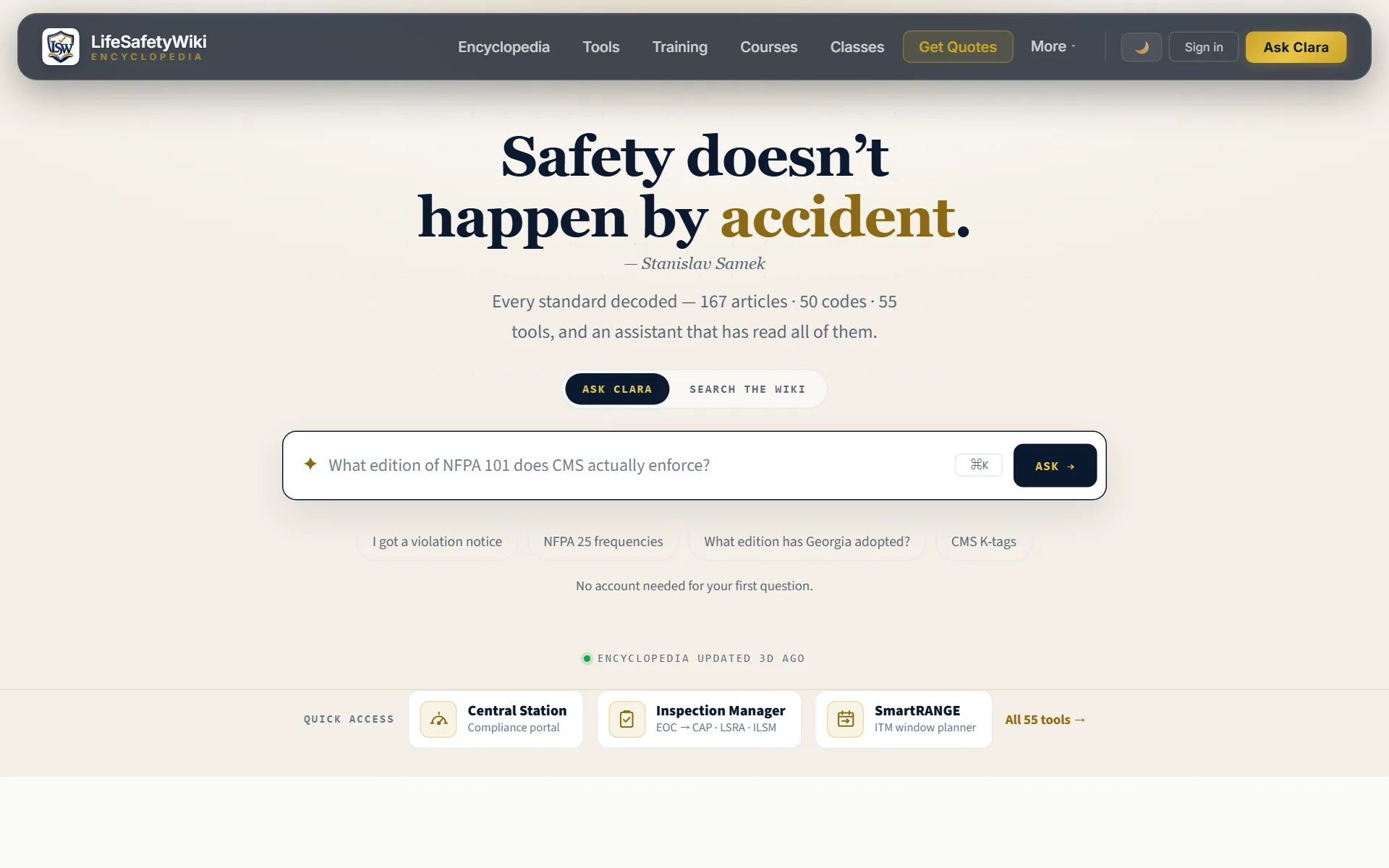
Real screenshots of the site. The report uses a fictional sample facility and people. Keyboard: → next · ← back.
What you get
The manager-facing plan: every deficiency, the corrective action for the manager, and a follow-up column. Items corrected by Life Safety during the walk are marked green so nobody chases them twice.
The official LSRA form, filled in: date, location, actions taken, who completed it, and which deficiencies need no ILSM. It answers “ILSM required?” yes or no from the findings.
The ILSM matrix with each open deficiency on its own row and the measures marked. Ready to sign and file next to the LSRA.
Six steps, in writing
- 1Tools
Open the Inspection Manager
From the top menu: Tools → Inspection Manager. It is free for members; sign in or create an account.
ToolsInspection Manager - 2Upload
Drop in the report
Drag the iAuditor report PDF onto the box, or click Browse files. It reads the hospital LS-EOC audit, outpatient and business-office EOC, surgery center, and Life Safety construction walk reports. You can also re-open a CAP .xlsx this tool exported earlier and keep working on it.
+ Browse filesTry a sample report - 3Detected format
Confirm what it found
The tool names the report type and its confidence, and counts every deficiency: total, corrected by LS, still open. If the confidence is low or the count looks wrong, check the report before you go on.
- 4Report header
Check the header
Inspector, date, floor, smoke compartment, manager and address come from the report. If a Northside hospital report leaves the address blank, the tool fills it in and marks it “Added — missing from the report”, with an Undo. Type over anything that is wrong. The practice line it builds is used in every file name and form, so get it right here once.
- 5Corrective Action Plan
Review the plan
Each row has a corrective action already written from the standard rules for that kind of finding — fire doors, penetrations, sprinklers, electrical, Life Safety drawings and more. Click any cell to edit it. Search and the category chips help on a long report.
✨↺✓✕ - 6Export bar
Export the three workbooks
The bar at the bottom builds the CAP, the LSRA and the ILSM as Excel files, named for the practice and the date. Open, sign, send.
📋 Export CAP🛡 Export LSRA📐 Export ILSM
Good to know
Opens a box where you can add trigger words, a code focus and a tone (manager, technical, concise). The AI writes a new action for that one row; you see it before it replaces anything.
Changed a row and want the standard wording back? ↺ rebuilds it from the rules.
The tool decides each action from what the finding says, not the section it was filed under, then asks the AI the same question. When the two disagree, nothing matched, or an action cites a code that does not fit (NFPA 70 on an oxygen cylinder), the row turns amber. Pick the right topic under “About”, or press “Looks right”.
Fixed it on the spot during the walk? Mark it. The row turns green on the CAP and the LSRA lists it as needing no ILSM.
The tool saves a draft in your browser as you edit. Close the tab by accident and it offers to resume next time.
Export the CAP, then drop that .xlsx back into the tool any time to edit it again.
Questions
Which reports does it read?
iAuditor (SafetyCulture) exports of the hospital LS-EOC audit for existing healthcare occupancy, outpatient and business-office EOC inspections, surgery center reports, and the Life Safety construction walk. Vendor ITM reports (BuildingReports and similar) belong in Central Station instead; the tool tells you when it sees one.
Where do the corrective actions come from?
From rules built over years of real EOC rounds: each kind of finding (fire door, penetration, sprinkler, electrical, Life Safety drawings, power strips and so on) gets the action and the standard behind it. When a deficiency’s text is broken across lines in the PDF, AI repairs the wording; it does not invent findings.
Does the report have to be a text PDF?
Yes. Export it from iAuditor as a normal PDF. A scanned or photographed report has no text to read.
Is my report stored?
No. The PDF is read in your browser, and its text is sent to our server only to pull out the deficiencies. Nothing from the report is saved. The only thing kept is a count — how many reports the tool has read and how many deficiencies it found — which is the number shown at the top of the tool.
Can I change everything before I export?
Yes. Every header field, every deficiency and every action can be edited, rows can be added or deleted, and the exports use exactly what is on the screen.
Stuck on a finding? Ask Clara. Paste the deficiency and ask which standard it falls under or how to word the corrective action.